
Start setup
Five steps to a cleaner mic.
Plan on about ten minutes the first time. You can stop after Test Mic if you only want to compare the sound inside Zondel. Do the VB-Cable step when another app needs to hear the cleaned output.
-
1
Choose input and output
Open Zondel and set the two device pickers in the main window:
- Input is your real microphone.
- Output is where Zondel sends the cleaned signal.
For a quick local test, your headphones or speakers are fine. For Discord, Zoom, OBS, Teams, Slack, or similar apps, the output should usually be
CABLE Inputafter VB-Cable is installed. -
2
Run calibration
Click Calibrate and keep the room reasonably quiet for a few seconds. Zondel measures your noise floor and listens for speaker-to-mic echo so it can recommend a better processing profile.
Run calibration again after changing microphones, moving the mic, switching rooms, or changing between speakers and headphones.
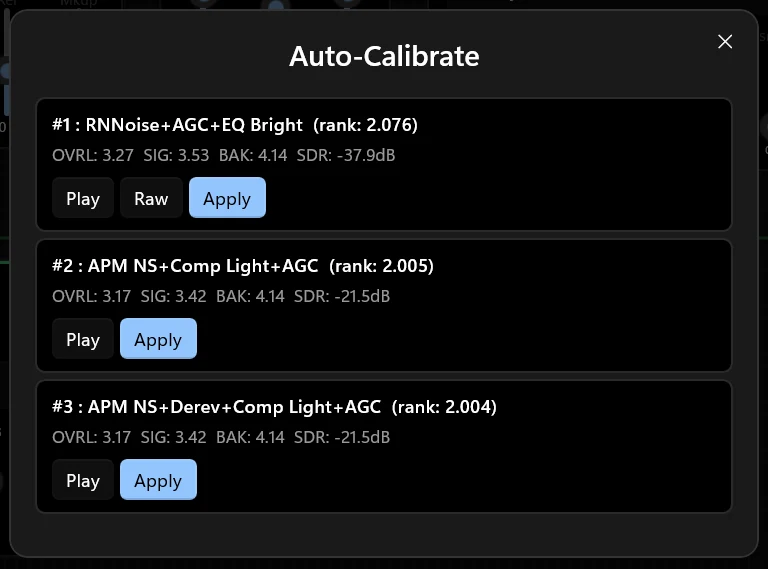
Auto-Calibrate ranks chains so you can pick the best fit. -
3
Use Test Mic
Click Test Mic, record one or two sentences, then play it back with processing on and off. Background noise should drop, but your voice should still sound like you.
If the processed version sounds robotic, muffled, or watery, switch to a gentler preset in Simple mode or tune the noisy stage in Pro mode.
-
4
Route cleaned audio into other apps
Voice apps normally listen to your raw microphone. A virtual cable lets them listen to Zondel instead.
- Open Settings with the gear button and choose Install VB-Cable.
- Install VB-Cable from VB-Audio, restart Windows if prompted, then confirm
CABLE InputandCABLE Outputappear in Windows sound settings. - In Zondel, set Output to
CABLE Input (VB-Audio Virtual Cable). - In Discord, Zoom, OBS, Teams, Slack, or your recording app, set Microphone to
CABLE Output (VB-Audio Virtual Cable).
The naming is backwards at first glance.CABLE Inputis the device Zondel sends audio into.CABLE Outputis the microphone device other apps listen to. -
5
Verify the route
In your voice app, open its microphone test and speak. Toggle Zondel's main processing switch on and off while testing; the level should keep moving, and the sound should clearly change.
For a Windows-only check, record a short clip in Voice Recorder with the mic set to
CABLE Output, then listen back.
After setup
Most users can stay in Simple mode. Switch to Pro mode only when you need to fix one specific thing, like echo, harsh sibilance, room reverb, or monitor latency.