
Voice Call
Best for Discord, Zoom, Teams, Slack, and normal meetings. It keeps the voice natural while cleaning everyday room noise.
Daily use
Simple mode keeps the controls you need every day: one processing switch, three presets, level meters, device pickers, calibration, and Test Mic. Start here unless you already know the exact processing stage you want to tune.
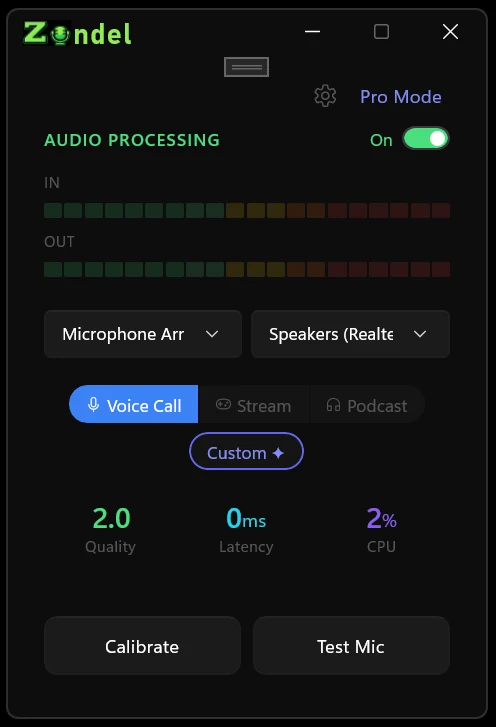
The three pills in the center of the window choose the overall sound. You can switch at any time.
Best for Discord, Zoom, Teams, Slack, and normal meetings. It keeps the voice natural while cleaning everyday room noise.
Useful when volume consistency matters. Compression and limiting help keep sudden peaks from jumping out on stream.
A more produced voice tone for podcast, voiceover, and recorded clips. It favors smoothness over maximum noise removal.
The Custom pill appears when Zondel has a tuned chain that does not match the three Simple presets, such as a calibration result or Pro-mode adjustment.
These controls are enough for most sessions.
Turns Zondel cleanup on or off. When it is off, the signal passes through without processing.
IN shows your raw mic level. OUT shows the cleaned signal leaving Zondel. If IN is pinned near the top, lower your mic gain.
Input is your mic. Output is where cleaned audio goes. For voice apps, Output is usually CABLE Input.
Quality estimates the processed voice, Latency shows Zondel's processing time, and CPU shows how much work the app is doing.
Use this after changing microphones, moving rooms, switching between speakers and headphones, or moving the mic.
Record a short clip and compare raw versus processed audio. It is the fastest way to know whether the preset is helping.
The top-right controls handle app setup and deeper tuning.
Start with Windows, start hidden in the tray, install VB-Cable, install bridges when available, and open About & How To.
Switch here when one thing needs a precise fix: echo, harsh "s" sounds, room reverb, EQ, monitoring, or saved presets.
If the processed Test Mic clip sounds good, keep Simple mode. More knobs are helpful only when you can name the problem.