
Pre-Amplifier
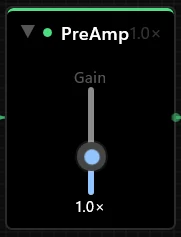
Raises or lowers the raw mic level before cleanup. Use it if the IN meter barely moves or clips near the top.
Fine tuning
Pro mode exposes the processing chain behind the Simple presets. Load a preset, change one thing at a time, and use Test Mic or the waveform panel to check whether the change actually helped.
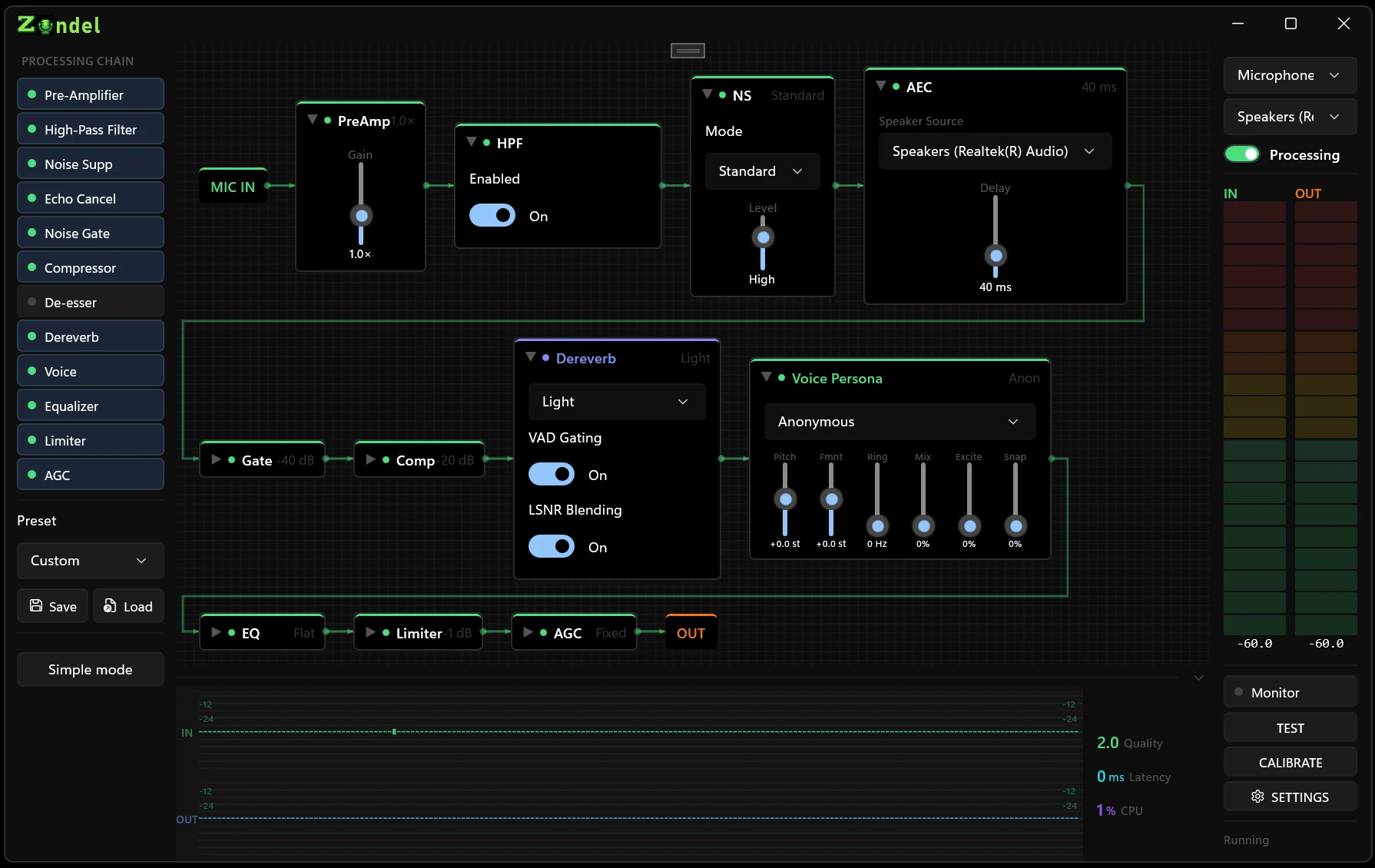
The left palette controls stages and presets. The center canvas shows the enabled nodes. The bottom panel shows live waveform plus Quality, Latency, and CPU.
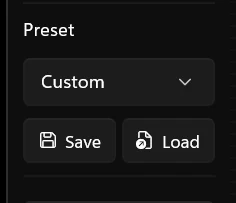
Load Voice Call, Streaming, Podcast, Noisy Room, Music, Broadcast, or Custom to begin from a known chain.
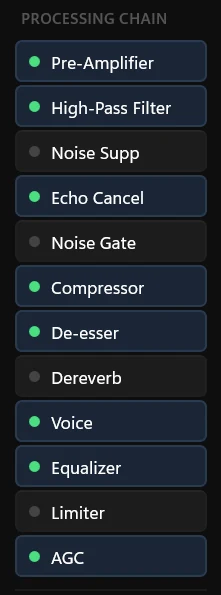
Turn stages on or off from the palette. Disabled stages pass audio through without changing it.
Expand a node, make a small adjustment, then listen before changing another control.
Use Save when the chain sounds good. Simple mode can then show the tuned chain as Custom.
These are the practical use cases for each stage. When in doubt, leave a stage off until you can hear the problem it solves.
Raises or lowers the raw mic level before cleanup. Use it if the IN meter barely moves or clips near the top.
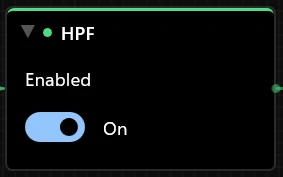
Cuts low rumble from desk bumps, traffic, HVAC, and plosives. It is usually safe for speech.
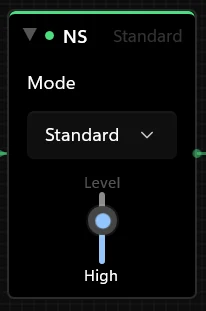
Reduces fans, keyboards, hiss, and room noise. Increase strength only as much as needed; too much can make speech sound processed.
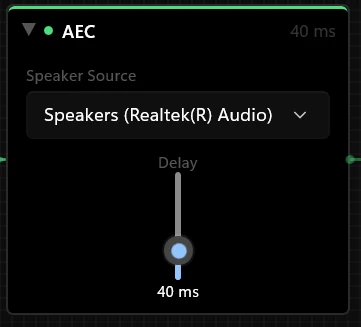
Helps when speaker audio leaks back into the microphone. Use it with speakers; skip it on headphones unless you hear echo.
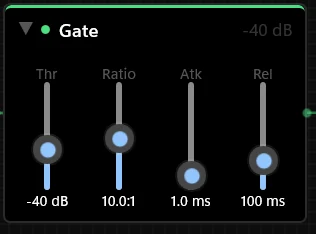
Mutes the mic when you are not speaking. Useful for steady low noise, but set the threshold gently so word endings are not cut off.
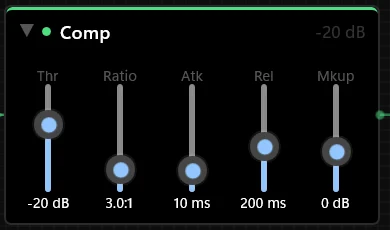
Makes quiet and loud phrases sit closer together. Useful for streams and recordings where consistent volume matters.
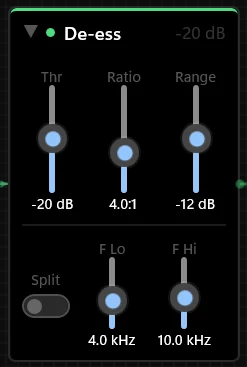
Tames sharp "s", "sh", and "tch" sounds. Use it when the mic or voice is bright and piercing.
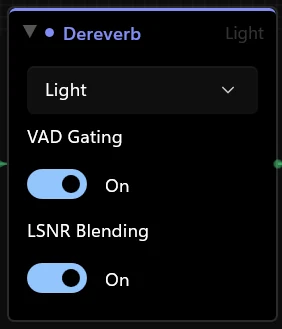
Reduces the roomy tail from hard walls, glass, and untreated spaces. It costs more CPU than simple filters, so use Light first.
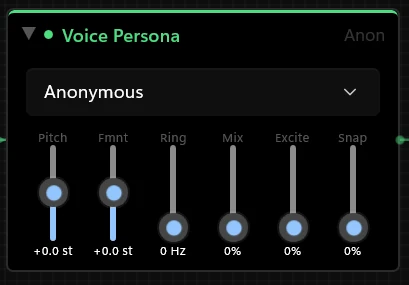
Changes pitch, formant, ring, and mix for character voices or comfort. It can add latency, so keep it off for normal calls.
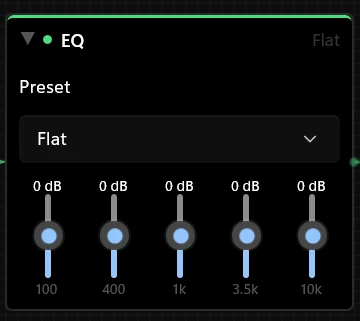
Shapes the voice tone. Cut boom before boosting brightness; small moves usually sound more natural.
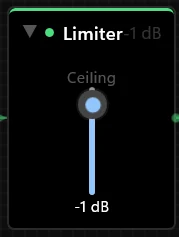
Caps peaks before they hit the output. Keep it near the end of the chain so sudden loud moments do not clip downstream.
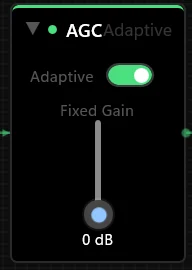
Automatic gain control follows your average level over time. Use it if your distance from the mic changes during calls.
Sends the cleaned voice to headphones so you can hear yourself. Lower buffer means less delay; higher buffer means more stability.
The final destination for the processed signal. For voice apps, this is normally CABLE Input.
If the sound is bad and you are not sure why, use this order instead of touching random controls.